
Linnworks Integration
The SmartConsign App for Linnworks allows you to use your existing carrier accounts with the Linnworks order management system. Estimated setup time: 5–10 minutes
The SmartConsign Linnworks integration allows you to:
- Create labels
- Print labels directly or include them in a packing note/invoice
- Add a tracking number to the Linnworks order record
- Cancel and reprint labels when required
To set up the integration, you will need:
- An active carrier account
- Access to the Linnworks web portal
- A SmartConsign account
You can create multiple SmartConsign integrations if you use multiple carrier accounts or services.
Repeat the setup process for each additional account.
Learn more about a SmartConsign Account
The following video demonstrates the full setup process:
The app must be installed through the web portal, even if you use the desktop version of Linnworks.
- Sign in to the Linnworks web portal at www.linnworks.net.
- From the left-hand menu, select Apps.
- Click Application Store.

- In the search bar, enter SmartConsign.
- Select Manage next to the SmartConsign app.
- Click Install.
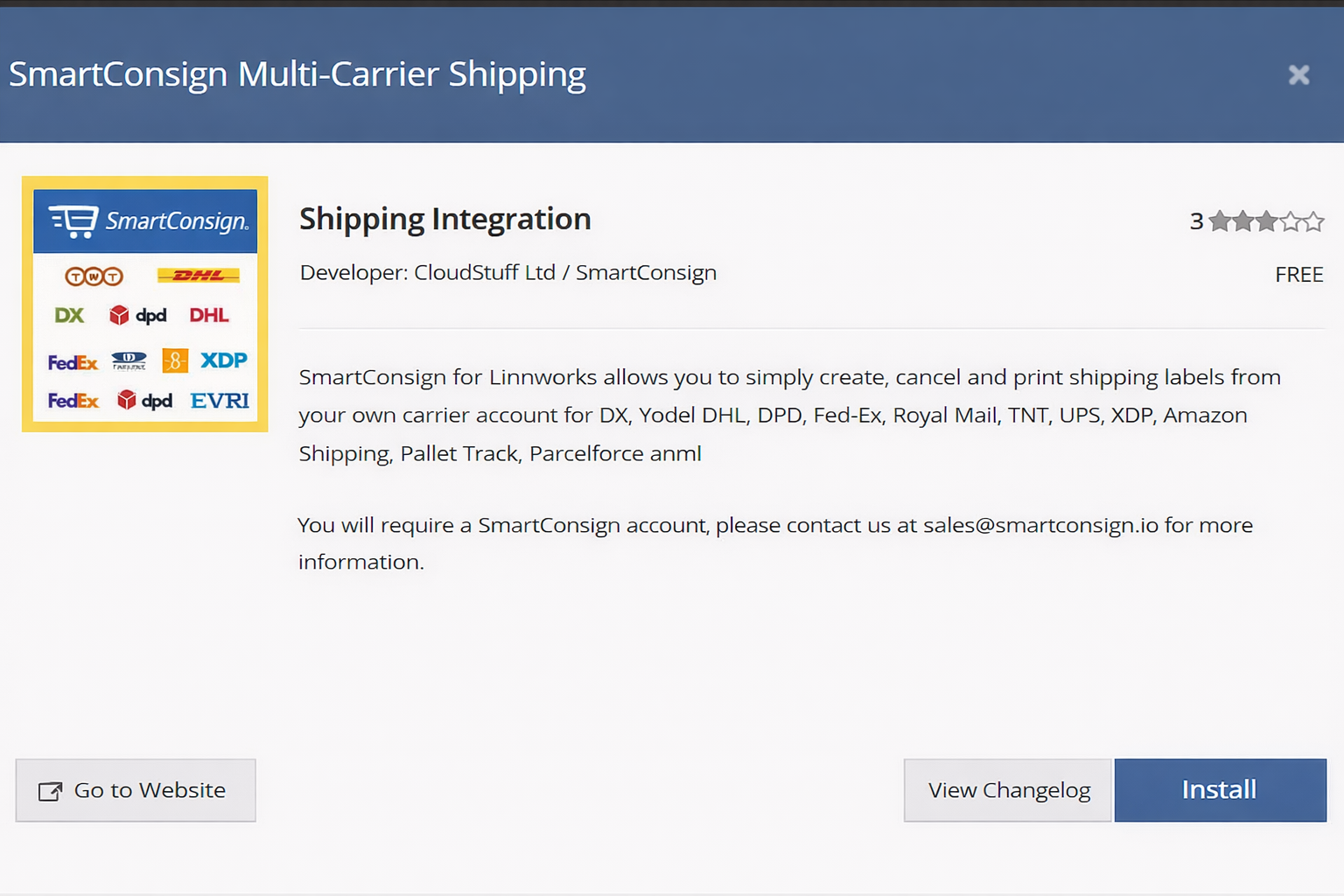
After installing the app, configure the SmartConsign integration.
- In Linnworks, select Shipping.
- Click Integrations.
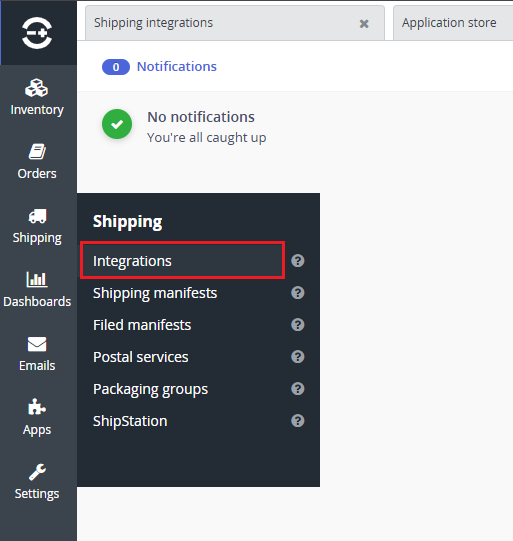
- Click Add Integration.
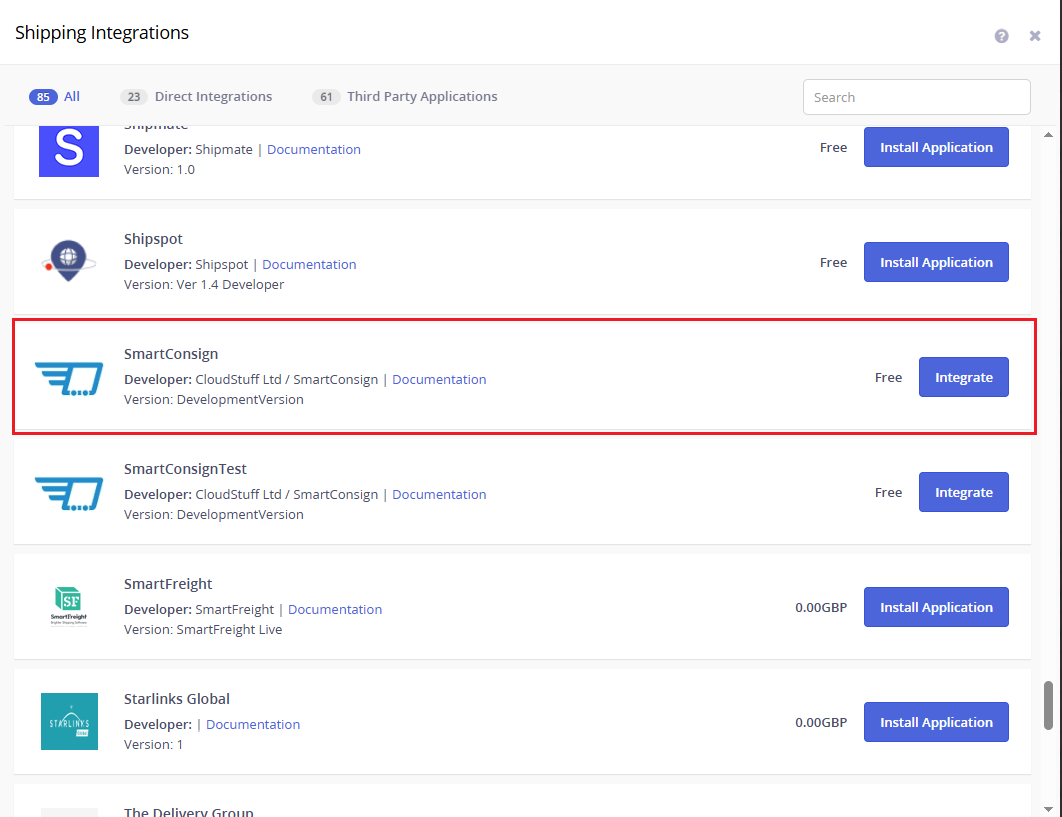
- Locate SmartConsign 2020 in the list.
- Click Integrate.
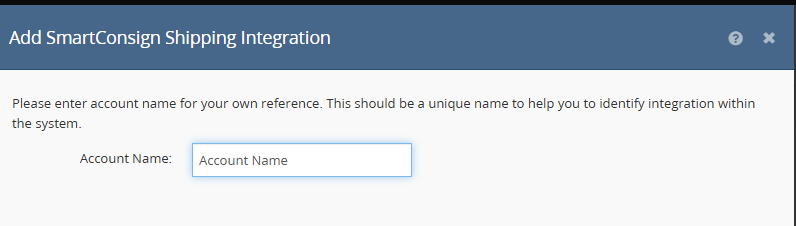
The account name can be any reference. It does not need to match your SmartConsign account.
- Enter a value for Account Name.
- Click Next.
- On the welcome page, click Next.
- Enter your SmartConsign API Key (provided when your SmartConsign account is created).
- Click Next.
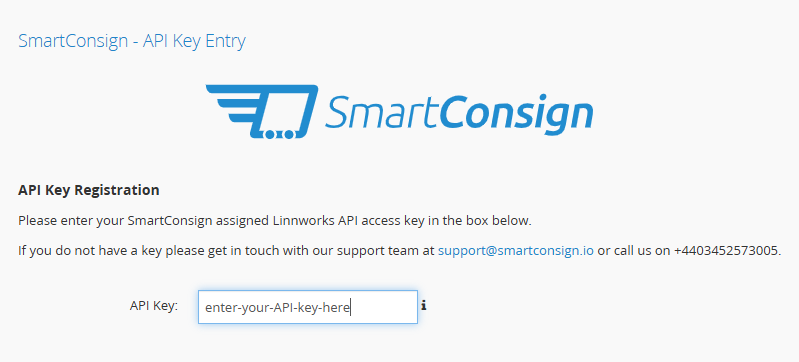
- Review the configuration details.
- Select the confirmation checkbox.
- Click Next.
- Select your Carrier from the dropdown list.
- Click Next.
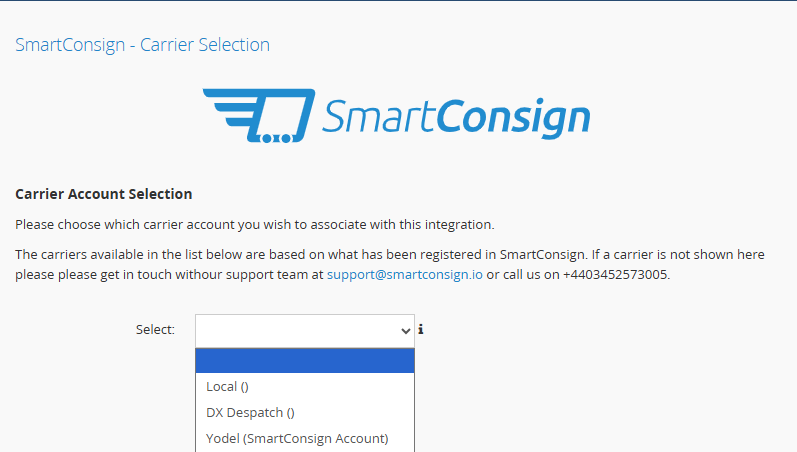
- On the final page, click Next to close the wizard.
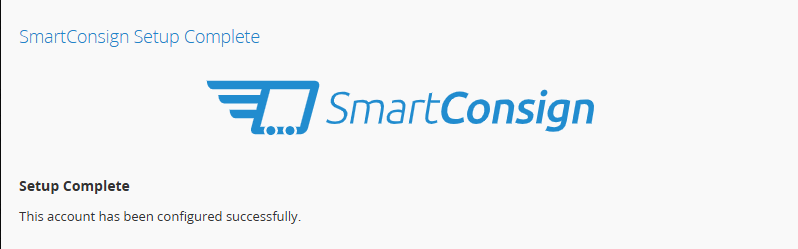
After creating the integration, add carrier services.
- Locate your SmartConsign integration.
- Click Services.

- Open the carrier service dropdown list.
- Select a service.
- Click Add.
- Repeat for each required service.

- Rename the Linnworks service if necessary.
- Click Edit on the added service to configure additional options (if available for your carrier).
- Click Finish.
- Open an order in Linnworks.
- Select a configured shipping service.
- Generate a test label.
- Confirm the label prints successfully 🎉
Standard label management tasks are handled within Linnworks.
This includes:
- Mapping services
- Printing labels
- Adding labels to invoices
- Cancelling labels
For full instructions, see the Linnworks documentation:
Linnworks Label Printing Guide
Labels generated by the SmartConsign app are formatted for:
- Size: 4 × 6 inches
- Orientation: Portrait
Labels can be:
- Printed directly
- Included in packing notes or invoices
The following Extended Order Property is supported:
InsuranceValue
-
Open the order in Linnworks.
-
Select Edit Order.
-
Add a new Extended Property.
-
Enter the Property Name exactly as:
InsuranceValue -
Enter the required Property Value.
-
Save the order.
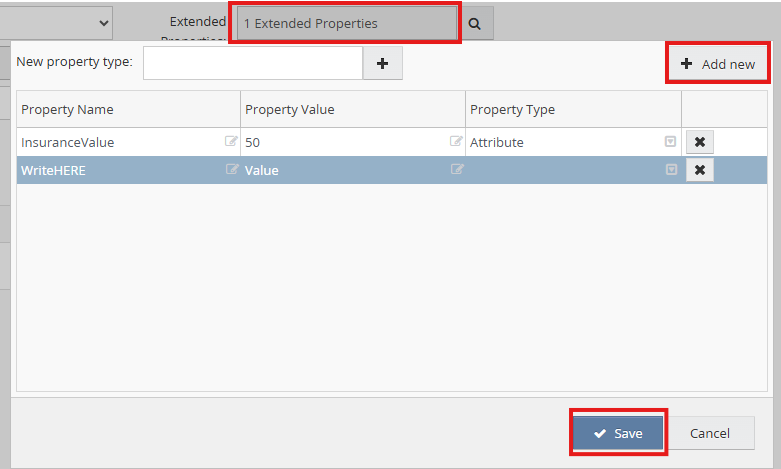
More information:
https://docs.linnworks.com/articles/#!documentation/shipping-mapping-properties
By default, the Vendor for SmartConsign Postal Services may be set to SmartConsign.
Update the Vendor to the actual carrier name used for the service, such as DX or APC.
- In Linnworks, go to Shipping > Postal Services.
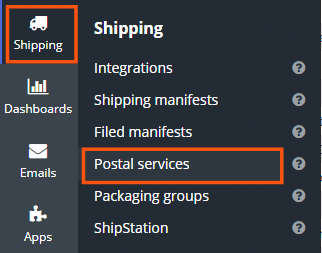
- Locate the Service.
- Find the Vendor field.

- Double-click the Vendor value to edit it.
- Replace SmartConsign with the actual carrier name.
- Save the change.
⚠️ Important: Make sure the Vendor matches the actual carrier used for the service.
For more information, see:
Some carriers require additional Extended Item Properties when shipping to Northern Ireland.
Required properties:
HSTariffCodeCountryOfOrigin
- Open the product in Inventory.
- Select Edit Product.
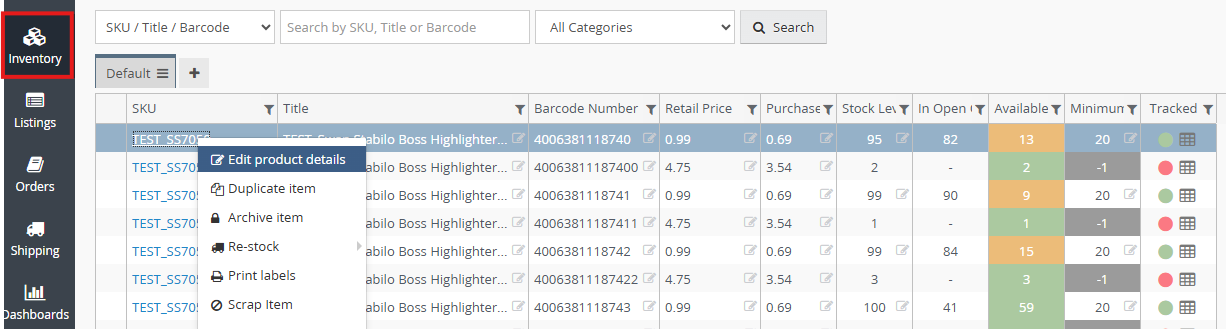
-
Add a new Extended Property.
-
Enter the Name exactly as:
HSTariffCodeCountryOfOrigin
-
Enter the required Value.
-
Save the product.
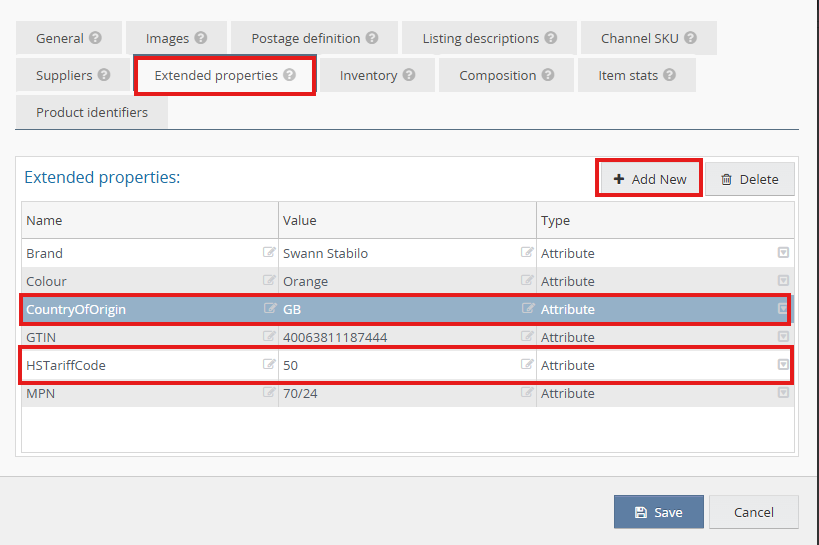
More information:
https://docs.linnworks.com/articles/#!documentation/product-details-extended-properties