
Manage Orders
The Manage Orders page allows you to view and manage orders received from connected marketplaces and sales channels.
Orders from integrations such as Shopify, eBay, Veeqo, and other configured channels are displayed on this page. From here, you can search for an order, review its source channel and delivery information, edit the order, or delete it when it is no longer required.
ℹ️ Saved Shipments:
Shipments created and saved directly in the SmartConsign Web UI are not displayed on this page. Until they are assigned to a carrier, they are managed from Shipments → Saved Shipments.
A marketplace order is an order received by SmartConsign from a connected external sales channel.
Depending on your configured integrations, orders may come from:
- Shopify
- Linnworks
- eBay
- Veeqo
- Amazon
- Magento
- WooCommerce
- Other configured marketplaces or sales channels
The Channel column identifies the source of each order.
Marketplace orders are separate from shipments created manually in the SmartConsign Web Portal.
| Record Type | Where to Manage It |
|---|---|
| Order received from an external sales channel | Marketplaces → Manage Orders |
| Shipment created and saved directly in the SmartConsign Web UI | Shipments → Saved Shipments |
| Shipment already created with a carrier | Shipments → Manage Shipments or the relevant shipment status page |
Use the Manage Orders page to:
- 🔍 Search and filter marketplace orders
- 📋 Review order information
- 🛍️ Identify the sales channel that supplied an order
- ✏️ Edit an order
- 🗑️ Delete an order that is no longer required
- 📄 Move between pages of order results
⚠️ Important:
Only delete an order when you are certain that it is no longer required. Deleted orders are not recoverable from SmartConsign.
💡 Suggested video content:
Show how to open Marketplaces → Manage Orders, select the filters, change the date range, search for an order, identify the source channel, and open the order actions menu.
Before searching for an order, identify as much information as possible.
Useful details include:
- Order reference
- Marketplace or sales channel
- Shipper
- Customer or recipient name
- Delivery address
- Date the order was created or imported
💡 Tip:
If an order does not appear, widen the selected date range and search again.
To open the page:
- Log in to the SmartConsign Portal.
- Expand Marketplaces from the left-hand menu.
- Select Manage Orders.
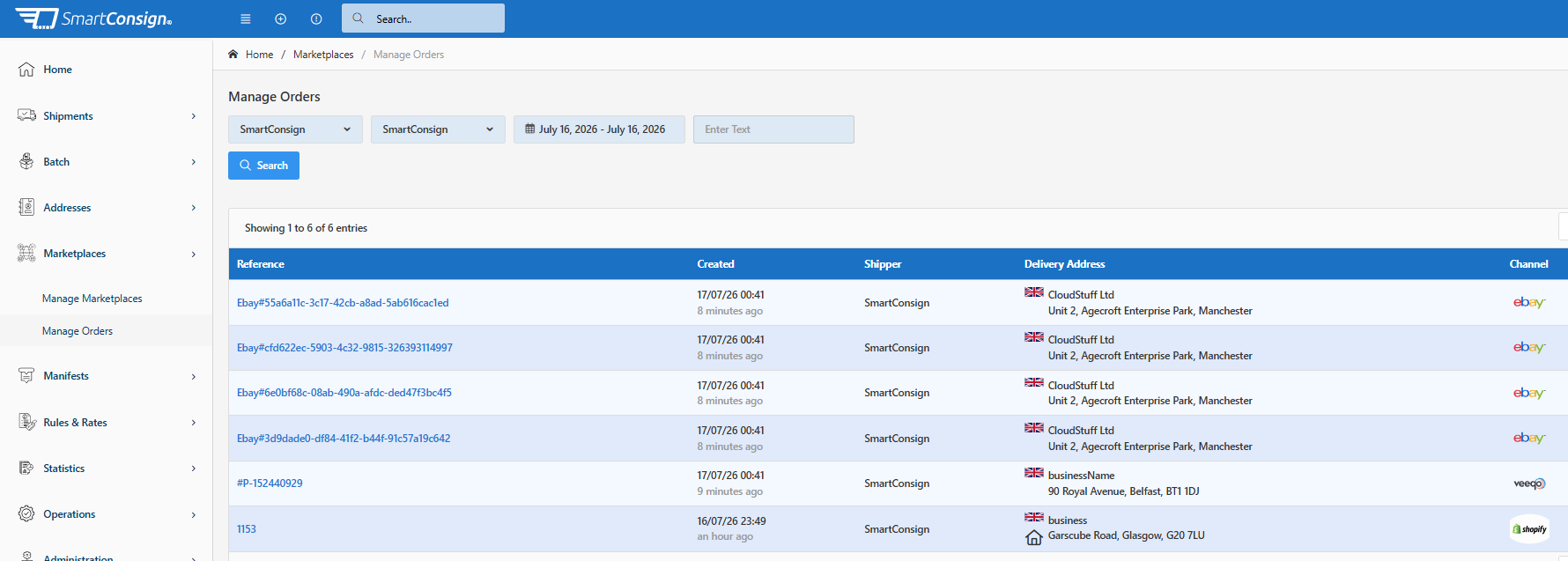
The page displays marketplace orders that match the currently selected filters.
The Manage Orders page contains the following main areas:
| Area | Description |
|---|---|
| 🔍 Search and Filters | Used to search for orders by operation, shipper, date range, and text. |
| 📋 Orders Table | Displays marketplace orders that match the selected search criteria. |
| 🛍️ Channel Column | Shows the marketplace or sales channel that supplied each order. |
| ☰ Actions Menu | Opens the actions available for an individual order. |
| 📄 Pagination | Allows you to move between pages of results. |
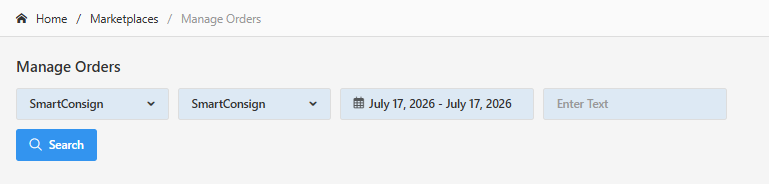
Use the filters at the top of the page to narrow down the order list.
The available filters include:
| Filter | Description |
|---|---|
| Operation | SmartConsign operation. |
| Shipper | Filters the results by the selected shipper. |
| Date Range | Filters orders by the date on which they were imported. |
| Search Text | Searches for matching order information, such as an order reference. |
- Select the required Operation.
- Select the required Shipper.
- Choose the appropriate Date Range.
- Enter search text, such as the order reference, where required.
- Click Search.
💡 Tip:
Entering an exact order reference usually provides the most precise result.
The date selector allows you to use a predefined period or enter a custom range.
Available options may include:
- Today
- Yesterday
- This Week
- Last Week
- This Month
- Last Month
- Custom Range
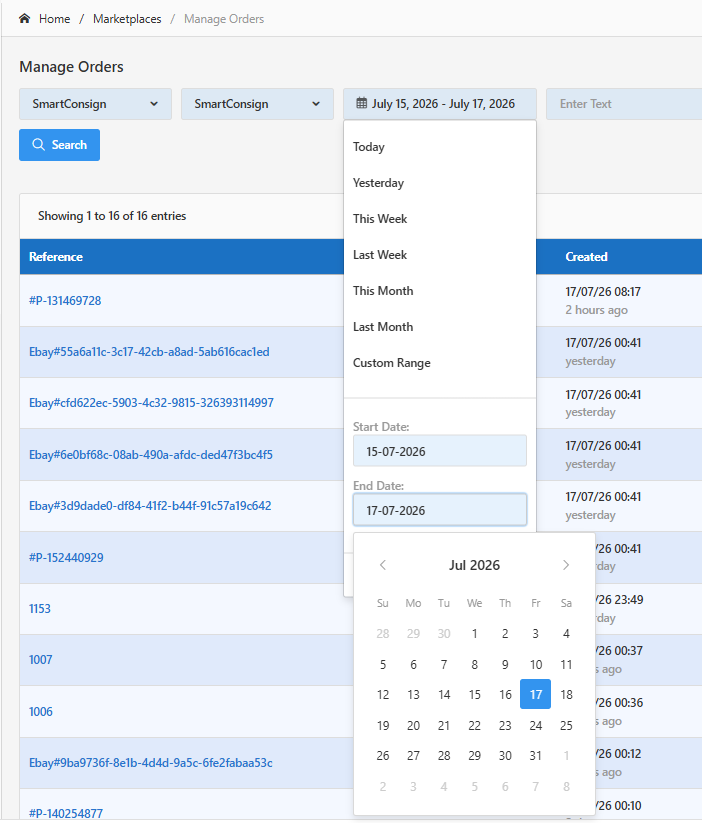
💡 Tip:
If you cannot find an older order, use Custom Range and select a wider period.
The table displays the main information for each marketplace order.
| Column | Description |
|---|---|
| Reference | The order reference received from the connected channel. |
| Created | The date and time the order was imported into SmartConsign. |
| Shipper | The shipper associated with the order. |
| Delivery Address | The recipient or business name and delivery address. |
| Channel | The connected marketplace or sales channel from which the order originated. |
| Actions | Opens the available actions for the order. |
The Channel column display the logo of the source integration, such as Shopify, eBay, or Veeqo etc.
The value in the Reference column identifies the order received from the external channel.
References may use different formats depending on the source marketplace. For example:
- A numeric Shopify order reference
- An eBay order identifier
- A Veeqo order reference
- A reference generated by another connected platform
Select the reference to open the associated order.
The Channel column shows where each order originated.
Examples include:
- Shopify
- eBay
- Veeqo
- Other connected marketplace platforms
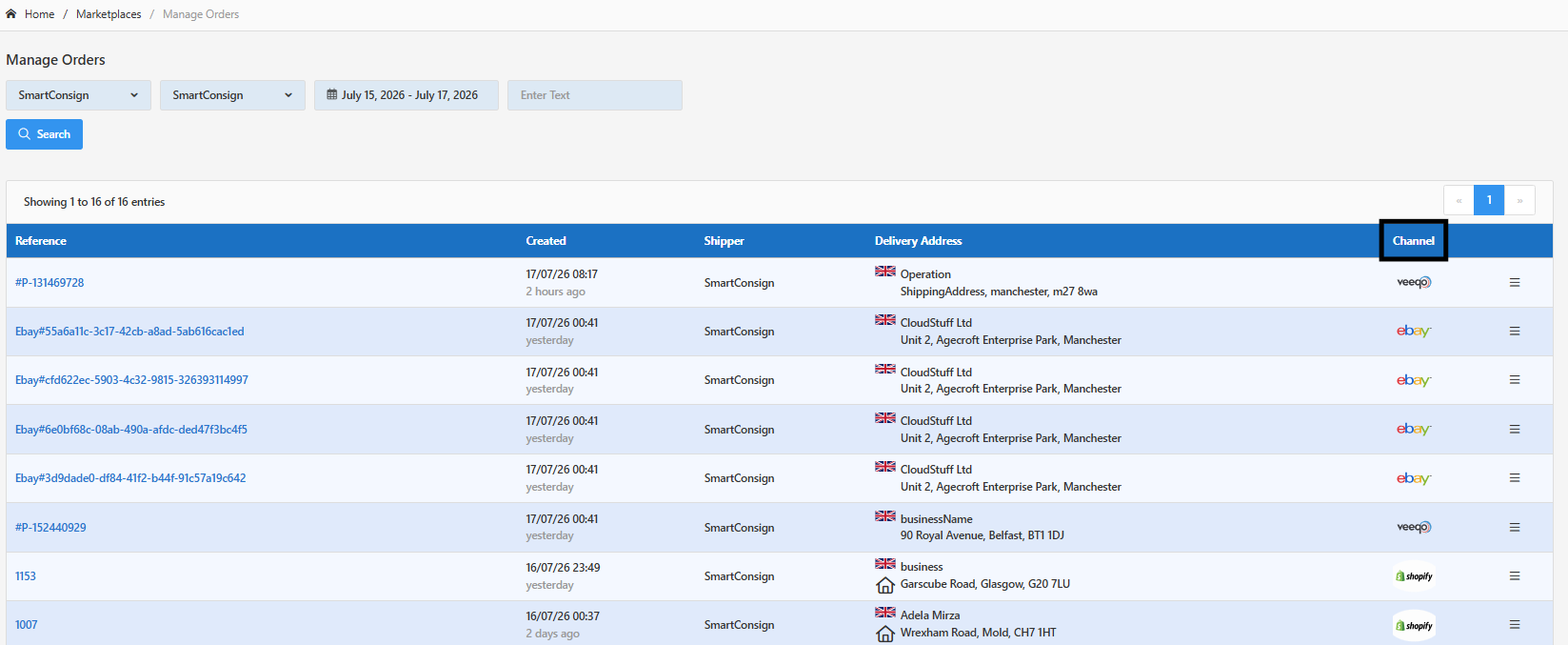
ℹ️ Note:
An order shown on this page originated from an external channel. A shipment manually created and saved in the SmartConsign Web Portal is managed from Shipments → Saved Shipments instead.
Each order row includes an actions menu on the right-hand side.
Click the menu icon ☰ to open the available actions.
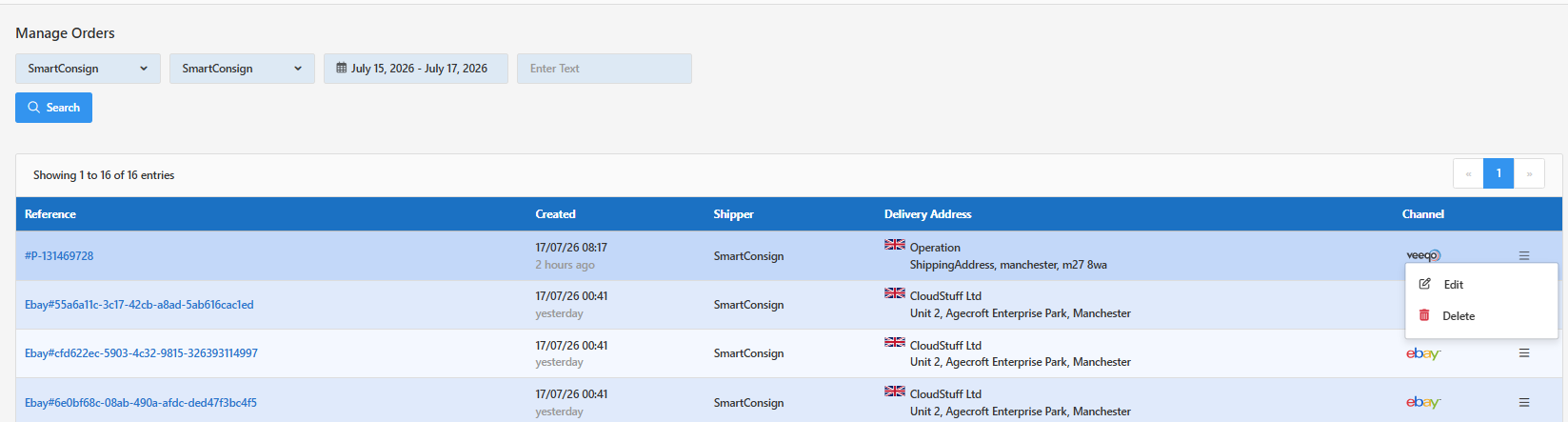
Available actions include:
| Action | Description |
|---|---|
| ✏️ Edit | Opens the order so that its details can be reviewed or updated. |
| 🗑️ Delete | Opens the delete confirmation page for the selected order. |
Use Edit when a marketplace order needs to be reviewed, completed, or corrected before it can be created as a shipment.
Selecting Edit opens the order in Create a Shipment. The order information received from the external channel is loaded into the shipment form.
Review the imported details and complete any required fields. When all mandatory information is available, select Create to create the carrier shipment.
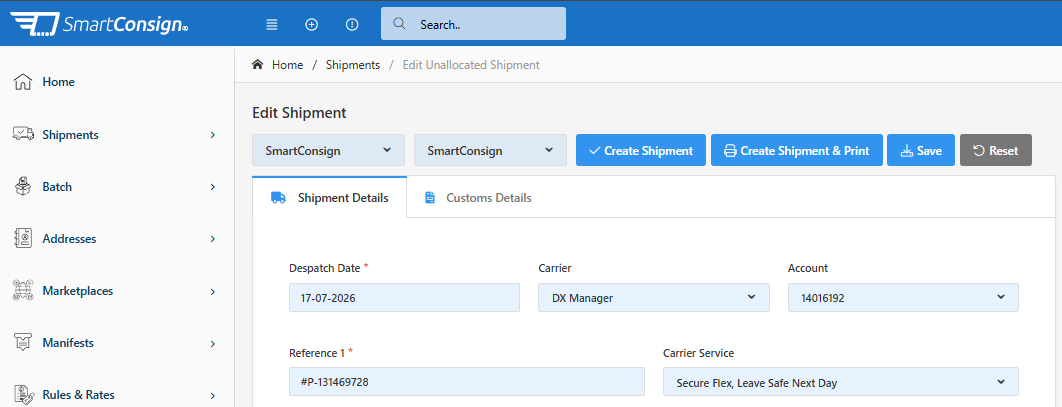
- Find the required order in the Manage Orders table.
- Click the menu icon ☰ on the right-hand side of the row.
- Select Edit.
- The order opens on the Create a Shipment page.
- Review the information imported from the source channel.
- Correct or complete any missing shipment details.
- Select the required carrier and service.
- Review the parcel, weight, dimensions, and delivery information.
- Click Create.
- Confirm that the shipment and shipping label were created successfully, where applicable.
After the shipment is created, it enters the standard shipment workflow and can be managed from Shipments → Manage Shipments or the relevant shipment status page.
✅ Best Practice:
Before clicking Create, verify the order reference, shipper, recipient name, delivery address, parcel details, carrier service, and any carrier-specific required fields.
⚠️ Important:
The shipment can be created only when all mandatory information has been completed and a valid carrier service is available.
ℹ️ Note:
The information supplied by each marketplace may vary. Some fields may already be populated, while others must be completed manually before the shipment can be created.
Use Delete only when the marketplace order is no longer required.
- Find the required order.
- Click the menu icon ☰ on the right-hand side of the row.
- Select Delete.
- Review the deletion message.
- Click Delete Order to confirm.
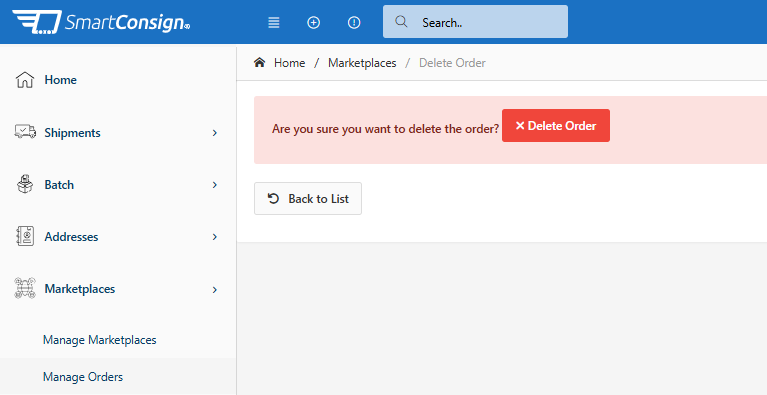
To leave the confirmation page without deleting the order, click Back to List.
⚠️ Important:
Deleting an order removes it from SmartConsign. Confirm that the order is no longer required before selecting Delete Order.
ℹ️ Source marketplace:
Deleting an order in SmartConsign does not delete the original order from Shopify, eBay, Veeqo, or another source platform.
When the number of matching orders exceeds the page size, use the pagination controls above or below the table.
The page also displays the number of currently visible records and the total number of matching entries.
Use the pagination controls to:
- Move to the previous page
- Move to the next page
- Open a specific result page
Use the following guide to determine where a record should be managed:
| Record Type | Where to Manage It |
|---|---|
| Shipment created and saved directly in the SmartConsign Web UI, but not assigned to a carrier | Shipments → Saved Shipments |
| Order received from a connected channel | Marketplaces → Manage Orders |
| Shipment already created with a carrier | Shipments → Manage Shipments or the relevant shipment status page |
⚠️ Important:
External-channel orders do not appear in Saved Shipments. Saved Shipments contains only shipments created and saved directly in the SmartConsign Web Portal.
Check that:
- The correct Shipper is selected.
- The selected date range includes the order.
- The order reference is entered correctly.
- The order was successfully received from the external channel.
- The order has not already been deleted.
Widen the date range and search again when necessary.
Manually created Web UI shipments are not displayed in Manage Orders.
Navigate to:
Shipments → Saved Shipments
Check that:
- The marketplace integration has been configured.
- The correct SmartConsign operation is selected.
- The order was received from the expected marketplace account.
- The channel successfully sent the order to SmartConsign.
For integration-specific configuration, see the relevant marketplace integration guide.
Deleted orders are not recoverable from SmartConsign. Check the original marketplace or sales channel and contact SmartConsign Support when assistance is required.
When managing marketplace orders:
- Search using the original marketplace order reference.
- Verify the source shown in the Channel column.
- Check the delivery address before processing the order.
- Confirm that the correct shipper is selected.
- Use an appropriate date range.
- Review an order carefully before editing it.
- Delete an order only when it is no longer required.
- Check the original sales channel when information appears incomplete.
For information about configuring individual marketplace integrations, see:
- Amazon Integration
- eBay Integration
- Linnworks Integration
- Magento Integration
- Shopify Integration
- Veeqo Integration
- WooCommerce Integration
For shipments created and saved directly in SmartConsign, see:
Most order-management issues can be resolved by checking the selected operation, shipper, date range, order reference, and source channel.
If you still require assistance, contact SmartConsign Support at support@smartconsign.io.